The Canvas & Wiring
Ports, wires, type mismatches, deletion, and finding nodes on a busy canvas.
Ports
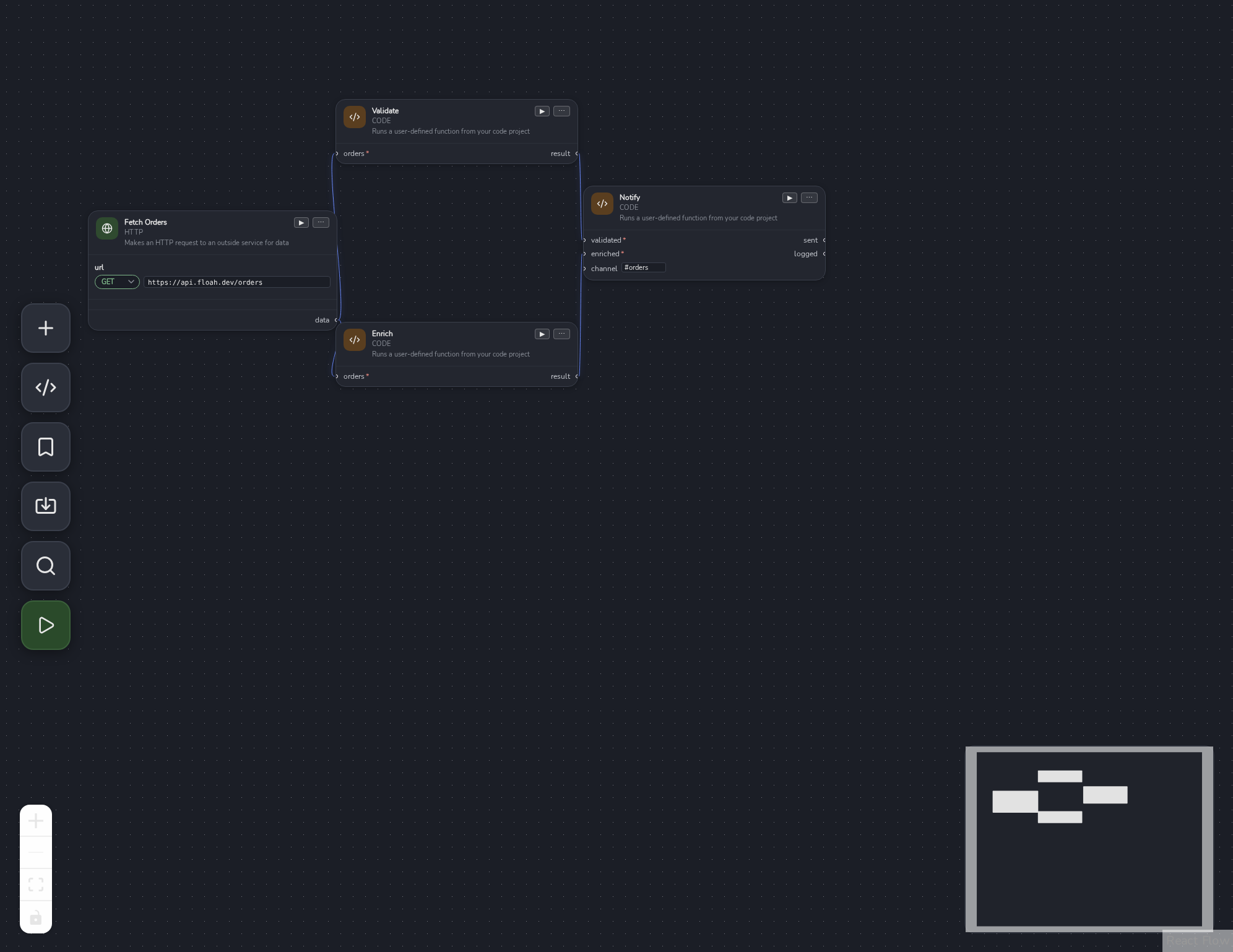
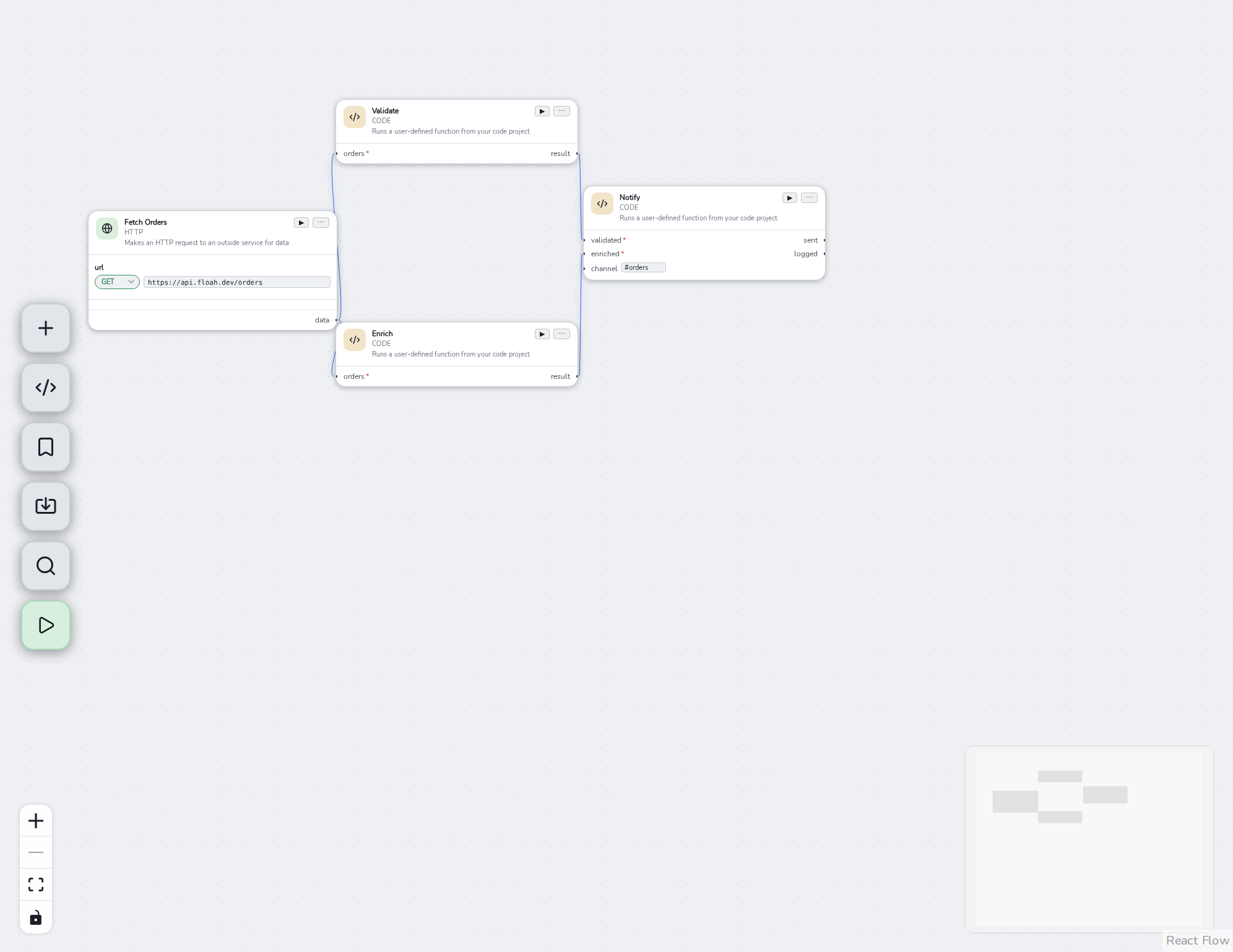
Every node has input ports (on the left) and output ports (on the right). Unconnected input ports
render an inline textbox so you can type a literal value directly, with a type-specific example
shown as a placeholder; required ports are marked with *. Output ports never show their value
inline , connect a wire and inspect it downstream, or use Solo Execute’s Raw Output tab (see
Running Flows).
Output ports flash briefly when a new value lands. A few “envelope” outputs , an HTTP/GraphQL/gRPC
node’s data port, a Receive node’s message port , hold a steady pulse instead of a one-shot
flash, since they represent a value meant to be read after the fact rather than a transient event.
Wires
Drag from an output port to an input port to connect them. A wire is colored by its source port’s declared type. Only one wire can feed a given input port , if you need the same value in two places, draw a second wire from the same output rather than duplicating the upstream node.
If a wire connects two incompatible types, it’s drawn with a mismatch color, and hovering it shows a tooltip explaining the mismatch. The run button reflects this too , see Running Flows for its blocked state.
Diagnostics
Validation problems , a missing required input, a mismatched type, a malformed template , surface as red text under the specific field that’s wrong, and put a red outline on the whole node when the problem isn’t tied to one field. These update live as you edit, not just at run time.
Deleting nodes
Deleting a node that has any connected wires asks for confirmation first (“This will also remove N connected edge(s)”), since it fans out to changes elsewhere in the graph. A node with no wires deletes immediately.
Finding a node
Press Ctrl/Cmd+F to open Search Nodes , a fuzzy search over every node currently on the canvas by its display name. Selecting a result pans and zooms the canvas to that node. This is a find-and-jump-to tool, not a node creation dialog , see Node Reference for how to add new nodes.
Right-clicking empty canvas opens the same Add Node / Add Code Node / Add Saved Node / Search / Run menu as the left sidebar shortcuts , and whatever you add from there lands exactly where you clicked instead of the viewport center.