Running Flows
The run button's states, live per-node results, Solo Execute, and running headlessly.
The run button
The run/stop control lives in the left sidebar (Ctrl/Cmd+Enter triggers the same action, as does “Run Graph” in any node or canvas right-click menu). It has three states:
- Idle , a play icon. Click it, or press Ctrl/Cmd+Enter, to start a run.
- Running , a stop icon. Click it to cancel the in-flight run.
- Blocked , shown when a wire has a type mismatch. It’s still clickable, but instead of running it pans and zooms the canvas straight to the first incompatible edge so you can fix it.
The run button is disabled outright only for other, non-type-mismatch validation errors , for example a required input with nothing connected and no literal value typed in.
While a flow runs
Results stream in per-node as they complete, not only once the whole run finishes:
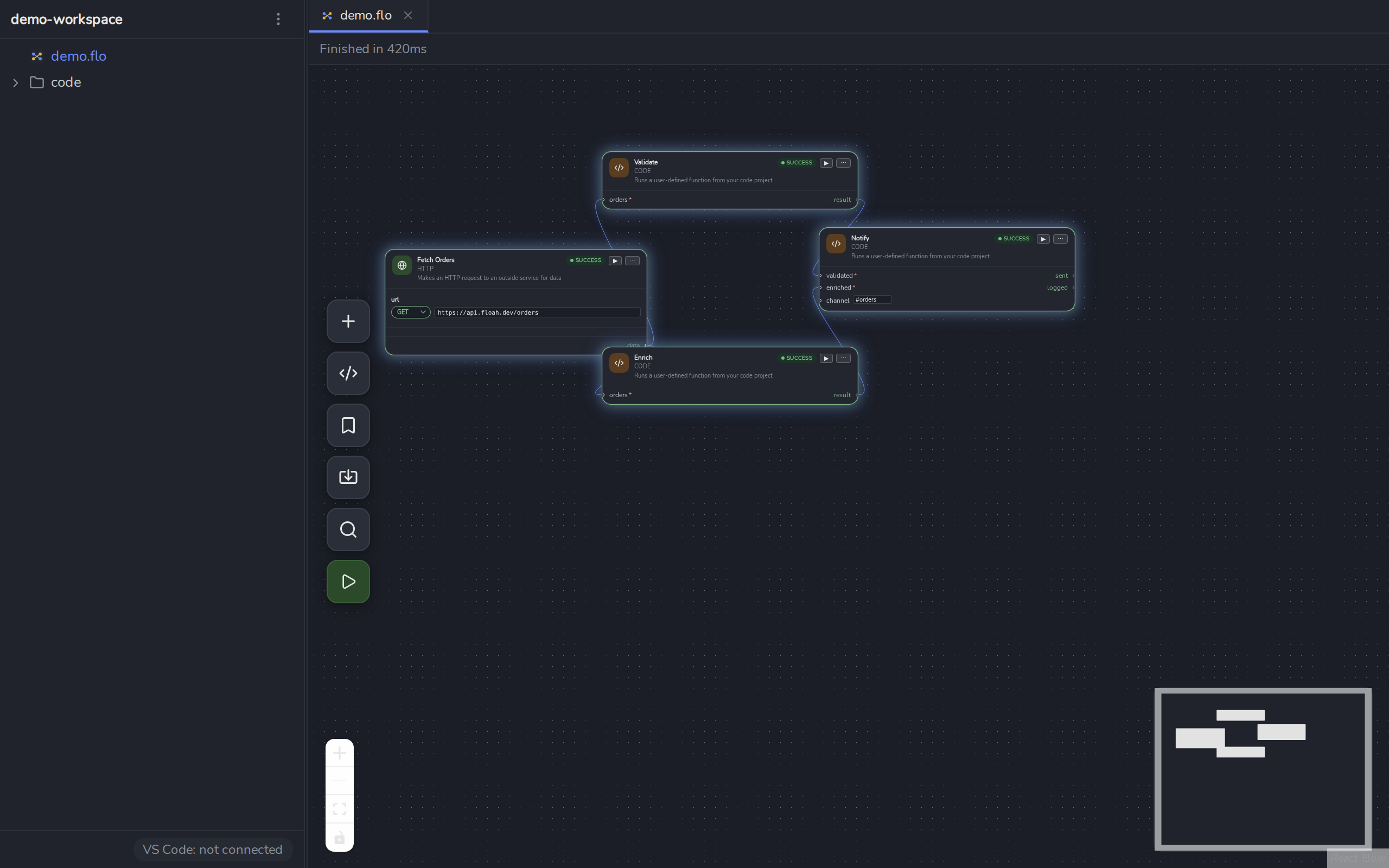
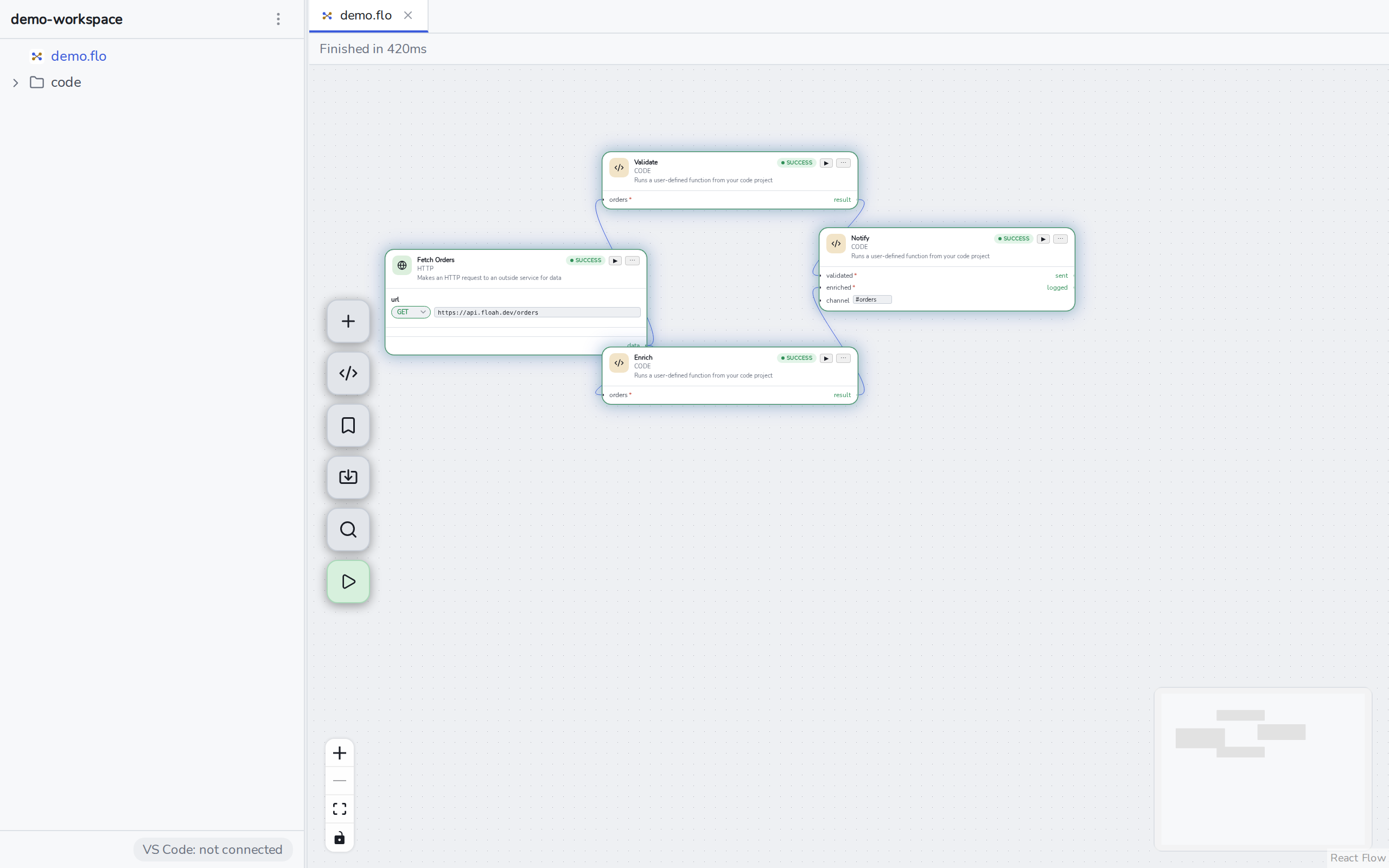
- Each node’s header gets a SUCCESS or ERROR badge, and the card itself gets a matching highlight.
- Output ports blink (or hold a steady pulse for envelope-style outputs) as values land.
- On error, a red banner with the error text appears directly under the failing node.
- The status line under the canvas reads
Running…, thenFinished in <n>msorFailed: <error>.
Solo Execute
Every node has a ▶ Solo execute this node button in its header. It runs just that one node, using hand-typed input values, without touching the rest of the graph or requiring a full run , useful for testing one node’s config in isolation. The result lands in the same dialog’s Raw Output tab, with a "" button to pretty-print each JSON value.
Solo Execute is the fastest way to check a single field or template expression while you’re still writing it , you don’t need everything upstream wired up first.
Running headlessly
For CI or terminal use, the fc CLI runs a .flo file directly without opening the app ,
see Headless CLI.